
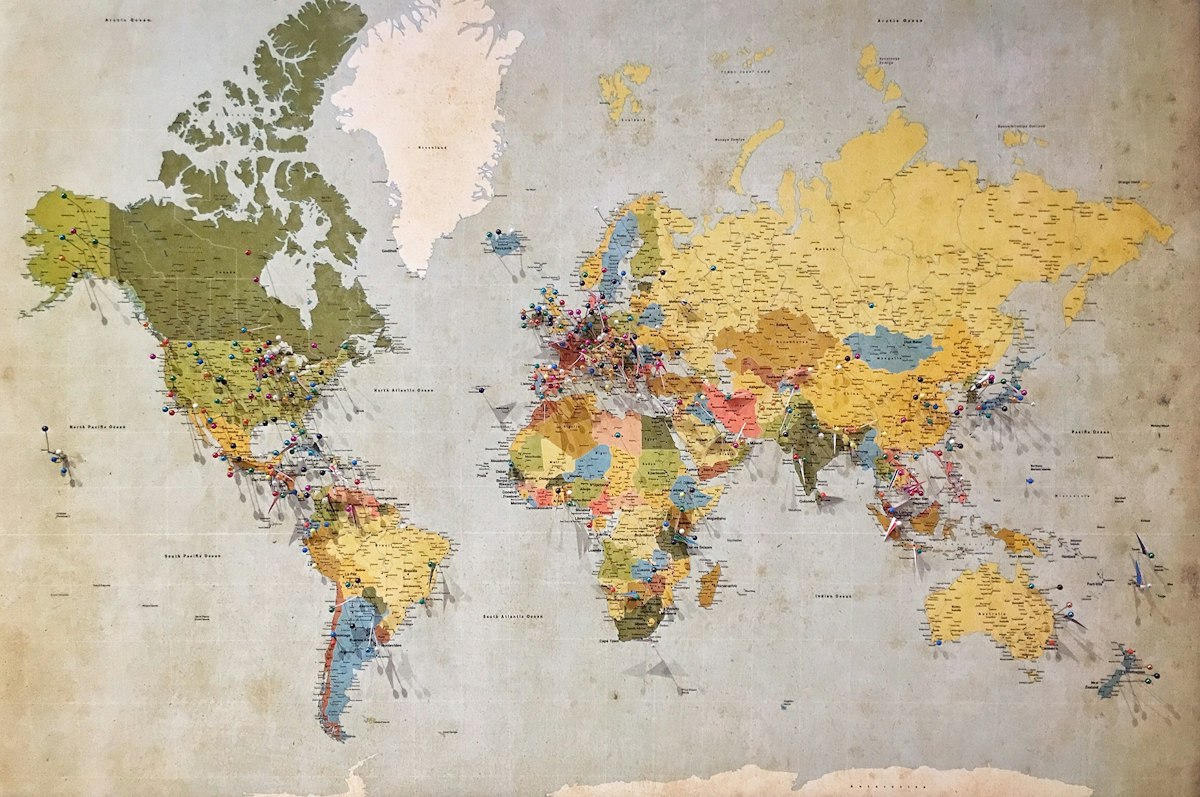
Geographic Information Systems (GIS) have become essential tools for public health research and planning. In Zambia, health facility mapping helps identify gaps in healthcare coverage, optimize resource allocation, and respond to disease outbreaks. This comprehensive guide will walk you through creating professional health facility maps using QGIS, the leading open-source GIS software.
Why QGIS for Health Facility Mapping?
QGIS is a powerful, free, and open-source geographic information system that has become the tool of choice for many public health researchers in Zambia. Unlike proprietary software that requires expensive licenses, QGIS is freely available to download and use, making it accessible to students, researchers, and health professionals across the country.
Did You Know?
QGIS supports over 500 geospatial algorithms and can handle virtually any spatial data format. It's used by the Ministry of Health Zambia, CIDRZ, and numerous research institutions nationwide.
Prerequisites
Before we begin, ensure you have the following:
- QGIS Software - Download version 3.36.3 from our software downloads page (password: MARTOOTECH@QGIS)
- Health Facility Data - CSV file with facility names, coordinates, and attributes
- Base Map Data - Administrative boundaries for Zambia (provinces, districts)
- Basic Computer Skills - Familiarity with spreadsheets and file management
Sample Dataset: Lusaka Health Facilities
85 facilities with coordinates, types, and catchment populations
Step 1: Setting Up Your Project
Open QGIS and create a new project. The first and most important step is to set your project's coordinate reference system (CRS). For Zambia, we recommend using WGS 84 / UTM zone 35S (EPSG:32735), which provides accurate distance measurements.
Project → Properties → CRS → Search '32735' → Apply
Step 2: Adding Base Map Data
Base maps provide context for your health facility locations. Zambia's administrative boundaries can be downloaded from the Humanitarian Data Exchange (HDX) or the Central Statistical Office. Once downloaded, add the shapefile to QGIS:
Layer → Add Layer → Add Vector Layer → Select your shapefile → AddStyle the administrative boundaries to create a clean basemap:
- Right-click the layer → Properties → Symbology
- Choose 'No fill' for fill color
- Set border color to dark gray (#666666) with 0.5mm width
- Apply and OK
Step 3: Importing Health Facility Data
If you have coordinates for your health facilities, import them from a CSV file:
Layer → Add Layer → Add Delimited Text Layer → Select your CSV file → Set X field as longitude, Y field as latitude → Set CRS to WGS 84 (EPSG:4326) → AddFor facilities without coordinates, you can geocode addresses using the MMQGIS plugin or digitize points directly from satellite imagery.
Step 4: Styling Health Facilities
Effective maps communicate information through visual hierarchy. Style your health facility points based on facility type, ownership, or other attributes:
- Hospitals: Large red squares (⬛) - size 4.0
- Health Centres: Medium blue circles (●) - size 3.0
- Health Posts: Small green circles (●) - size 2.0
- Clinics: Small orange circles (●) - size 2.0
Layer Properties → Symbology → Categorized → Value column: 'facility_type' → Classify → Assign colors and sizes → Apply"The best maps don't show everything - they show the right things. Use color and size intentionally to guide the viewer's attention to the most important information."
— Dr. Mwamba Banda, GIS Specialist
Step 5: Creating Catchment Areas
Buffer analysis helps visualize the geographic coverage of health facilities. To create 5km and 10km catchment areas:
Vector → Geoprocessing Tools → Buffer → Select your facility layer → Distance: 5000 meters → Run → Repeat with 10000 metersStyle the buffer layers with transparency to avoid obscuring underlying features:
- 5km buffer: Light green, 30% transparency
- 10km buffer: Light yellow, 30% transparency
Step 6: Adding Labels
Clear labeling is essential for map readability. QGIS offers powerful label placement options:
Layer Properties → Labels → Single Labels → Value: 'facility_name' → Set font size to 8pt → Buffer: white, 1mm → Placement: Offset from pointFor dense urban areas, consider using callout lines or interactive tooltips instead of permanent labels.
Step 7: Creating the Print Layout
A professional map includes essential elements beyond the geographic data:
- Title: "Health Facility Distribution in Lusaka District"
- Legend: Explain symbols, colors, and buffer zones
- Scale Bar: Show distance reference
- North Arrow: Orientation indicator
- Credits: Data sources, author, date
- Inset Map: Location within Zambia
Project → New Print Layout → Add Map → Add Legend → Add Scale Bar → Add North Arrow → Add Label → Export as Image/PDFPro Tip
Export your map as both PNG (for web use) and PDF (for publication). QGIS allows resolution settings up to 300 DPI for high-quality print outputs.
Conclusion
Creating professional health facility maps in QGIS is a valuable skill for Zambian public health researchers. With practice, you can produce publication-ready maps that effectively communicate spatial patterns and support evidence-based decision-making.
Remember that mapping is both science and art. While the technical steps are important, the most effective maps are those that clearly communicate their intended message to the target audience.


Comments 3
Join the discussionExcellent tutorial! I've been struggling with creating catchment areas for my thesis on rural health access. The buffer analysis steps were very clear. Could you do a follow-up article on network analysis for travel time estimation?
Thank you for this comprehensive guide. At CIDRZ, we've been using QGIS for our malaria elimination program. One tip I'd add is to use the QuickMapServices plugin for OSM basemaps - it's a real time-saver!
Is there any difference in accuracy when using UTM zone 35S vs 36S for Western Province? My study area extends across both zones and I'm concerned about distortion.
Leave a Comment